
Google Ads with Beaconry: OAuth in 2 minutes, no developer-token approval
Google Ads conversion uploads need a developer-token, normally a 4-to-6-week approval process. Beaconry's Phase-2 broker abstracts the token, you connect via OAuth and start the same day. Customer credentials and conversion data stay in WordPress.
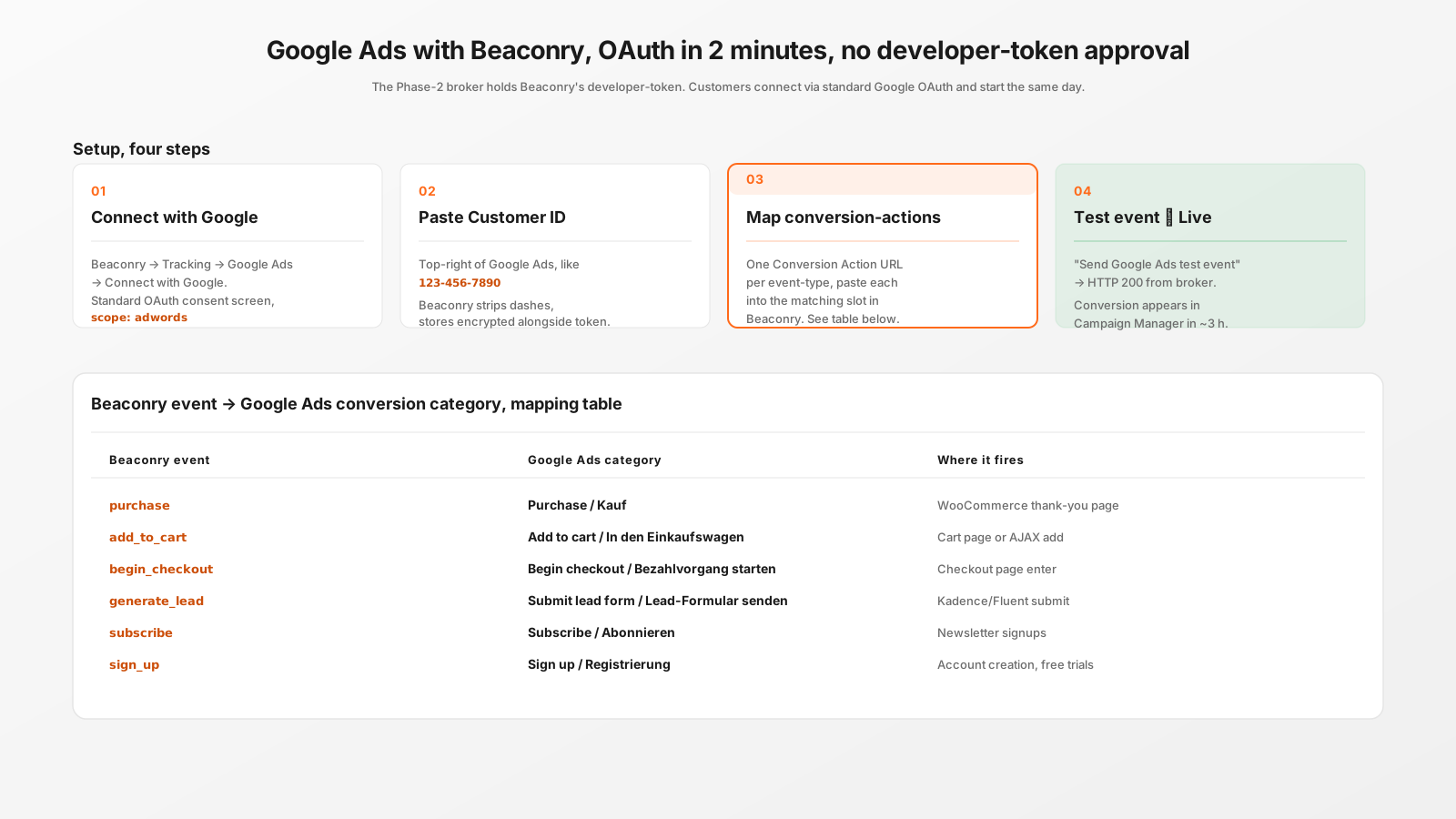
Setup, four steps
- Connect with Google. Beaconry → Tracking → Google Ads. Standard OAuth consent screen, scope
adwords. Approve. Refresh-token stored encrypted in your WordPress. - Paste Customer ID. Top-right of Google Ads, format
123-456-7890. Beaconry strips the dashes, encrypts alongside the token. - Map conversion-actions. One Conversion Action URL per event-type you want to track. See mapping table below.
- Test event. Click "Send Google Ads test event". HTTP 200 = broker accepts the upload. Conversion appears in Campaign Manager in ~3 hours.
Why a broker instead of your own developer-token
Google Ads API requires a developer-token for conversion uploads. Getting one approved means submitting a written application, going through Google's review (questions, screenshots, follow-ups), waiting 4-6 weeks. The Phase-2 broker holds Beaconry's already-approved token, attaches it to your uploads, and forwards them to Google.
Trust property: the broker only sees the upload body in transit, encrypted, not stored or logged. Your refresh-token and conversion data live only in your WordPress. A breach of the broker would leak Beaconry's developer-token (revocable) but not any customer's data. Full architecture write-up here.
Conversion-Action mapping
Beaconry events map to Google Ads conversion categories:
| Beaconry event | Google Ads category |
|---|---|
purchase | Purchase |
add_to_cart | Add to cart |
begin_checkout | Begin checkout |
generate_lead | Submit lead form |
subscribe | Subscribe |
sign_up | Sign up |
contact | Contact |
For each, create the Conversion Action in Campaign Manager → Tools → Conversions → New conversion action → Source: Website. Pick the matching category. Save. The detail-page URL contains conversionTypeId=...; copy the full URL into the matching slot in Beaconry.
Shortcut: import from GA4
If your GA4 property already marks the relevant events as conversions, you can import them in Google Ads instead of recreating each one:
- Tools → Conversions → New conversion action.
- On step 2 of the wizard, scroll down and click "Back" to land on step 1.
- Pick Google Analytics 4.
- Back on step 2, an "Import multiple conversion actions from an existing Google Analytics property" section appears at the bottom.
- Pick the property, import.
You still paste the resulting Conversion Action URLs into Beaconry. The shortcut just spares you re-creating each Conversion Action manually.
Enhanced Conversions, automatic
Beaconry hashes email and phone server-side and attaches them to every conversion upload as Enhanced Conversions data. Material match-rate boost for visitors who don't have gclid at conversion time. No additional setup, automatic if Beaconry has token + Customer ID.
Click-IDs handled
gclid, wbraid, gbraid all captured from URL parameters on landing, persisted in nl_ext, sent on every conversion upload. wbraid covers iOS in-app browsers, gbraid covers iOS web. All three are required for full Google Ads attribution coverage.
What you still configure in Google Ads
- Each Conversion Action's value, count, and click-through window in Campaign Manager.
- Smart-Bidding strategy (Target CPA, Maximize Conversions, etc.).
- Attribution model preference (data-driven, last-click, etc.).
Beaconry sends the events, Google Ads decides what to optimise on.
Take-away
Google Ads with Beaconry is the channel where the architectural difference is most material: skipping the 4-6 week developer-token approval. Customers go from "want to track" to "live tracking" in under an hour, including the time to configure Conversion Actions in Campaign Manager.